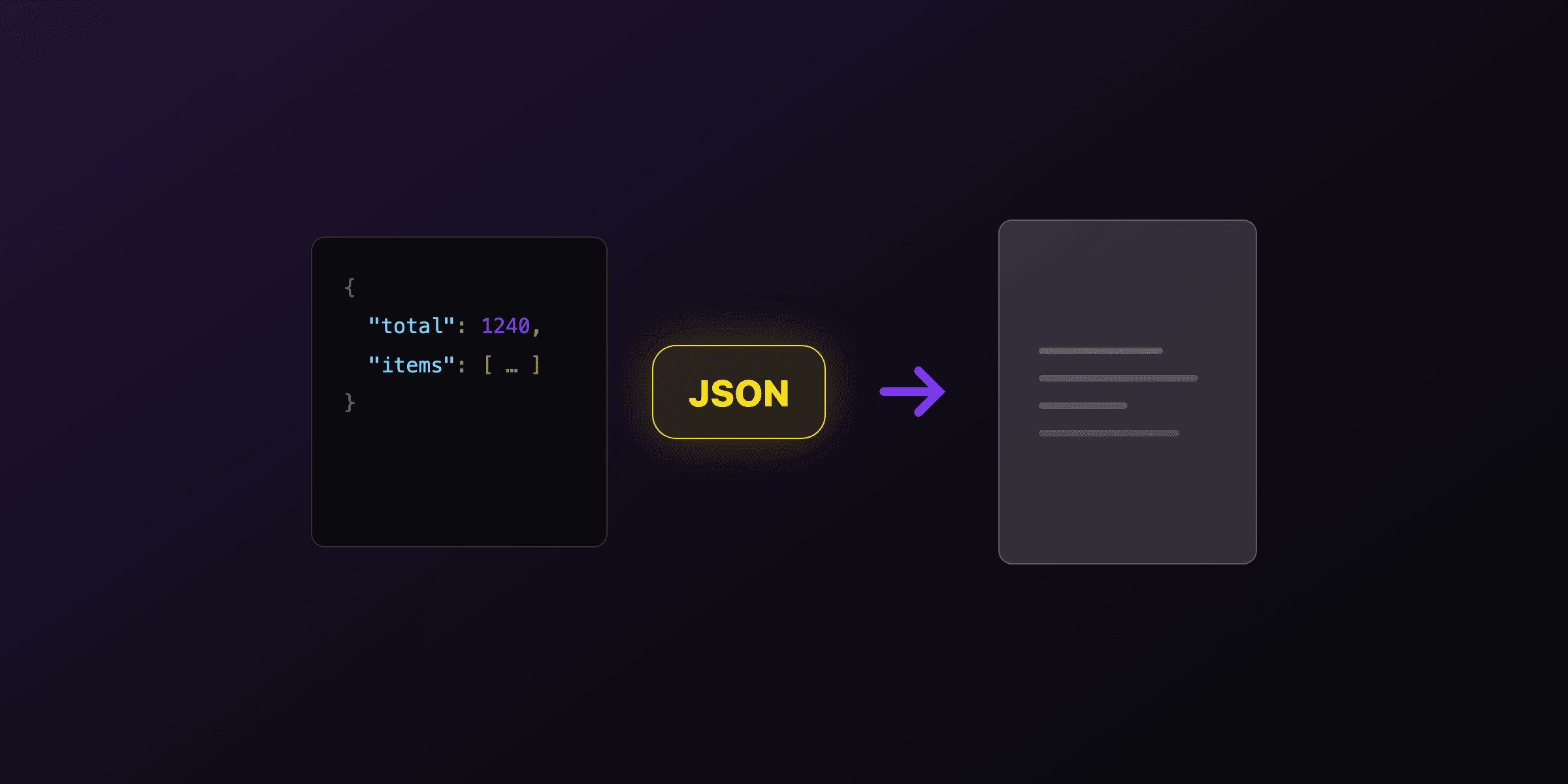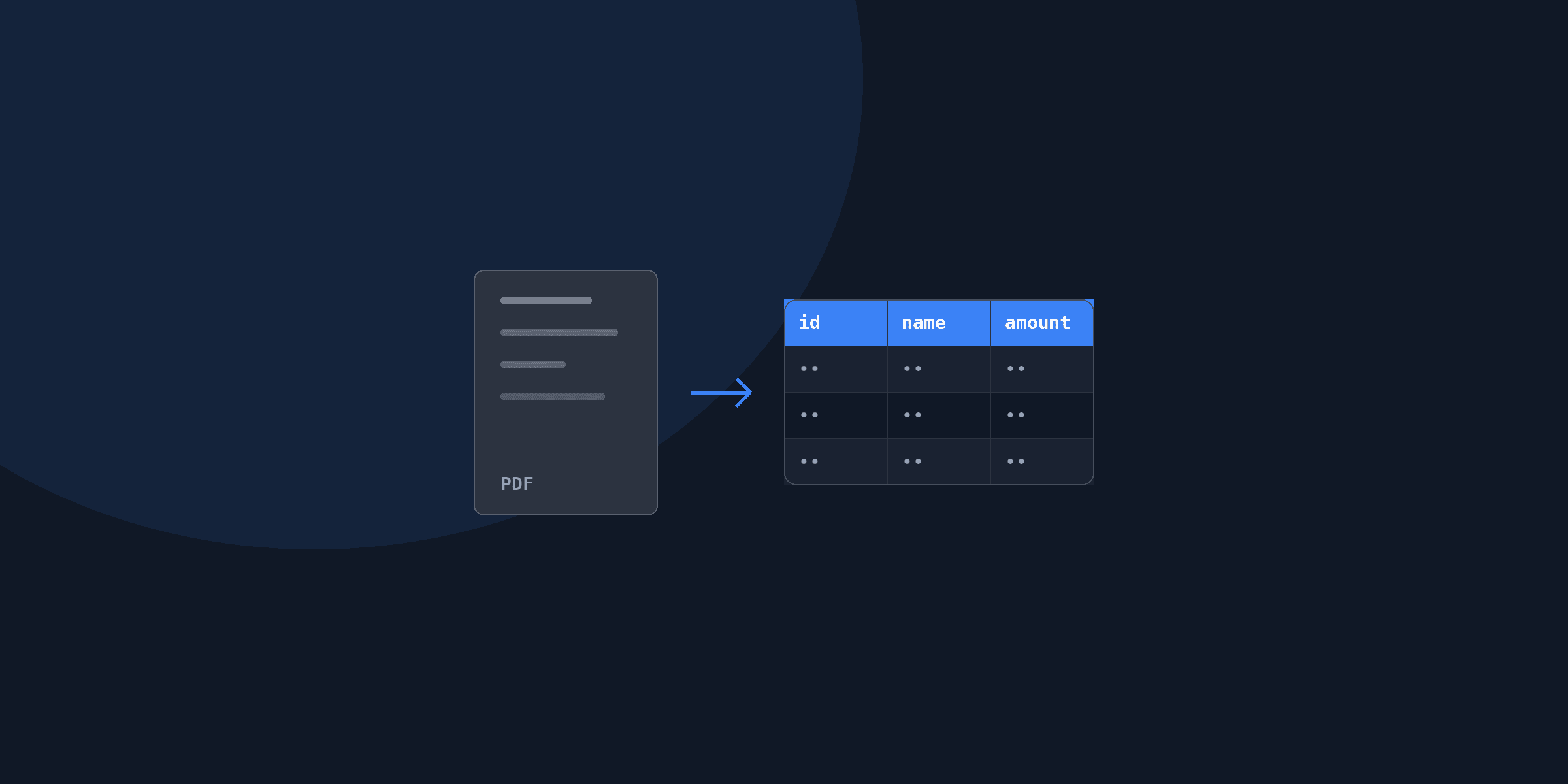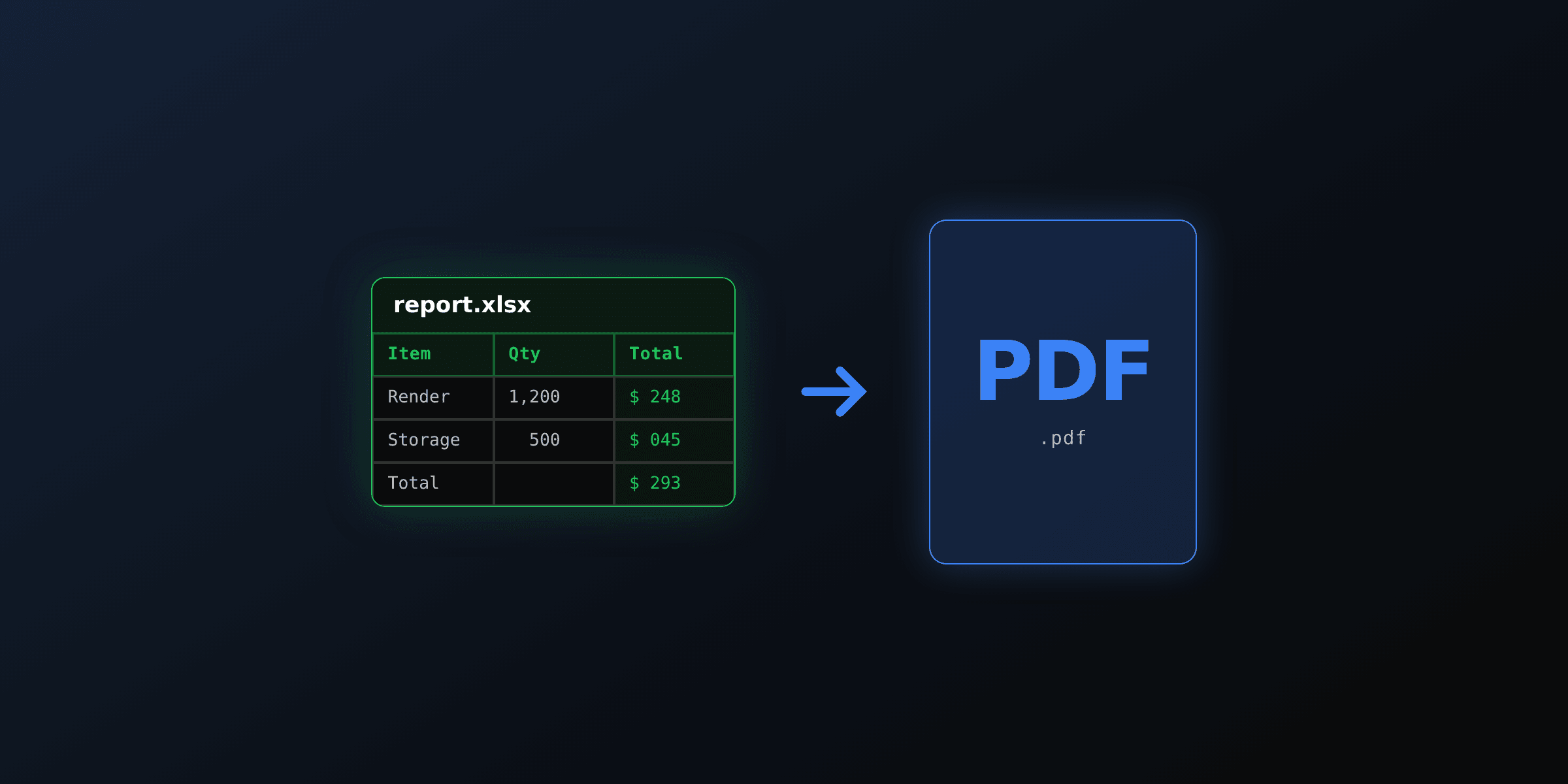
Converting a CSV to PDF means turning rows of comma-separated text into a paginated, printable table. The reliable method is to parse the CSV into rows, map each row to an HTML table row, then render that HTML to PDF with a browser engine like Chromium. The HTML table owns the layout, page breaks, and the repeating header; the CSV owns the values. Screenshot or plain-text conversion skips the table structure and gives you a worse result.
This guide shows the CSV to PDF conversion three ways: in Python with pandas, in Node.js with PapaParse, and with a hosted API that skips the local setup. It covers the formatting problems that break wide tables, and when each method is the right choice.
What is the fastest way to convert CSV to PDF?
The fastest reliable path is HTML in the middle: parse the CSV, generate an HTML table, render the HTML to PDF. Every method below uses this pipeline, and they differ only in who parses the CSV and who runs the renderer. A CSV file is plain text with no layout, so the table structure and styling are always something you add, not something you extract.
| Method | Best for | Renderer | Setup weight |
|---|---|---|---|
| Python + pandas | Data scripts, notebooks, reports | WeasyPrint or Playwright | Medium |
| Node.js + PapaParse | Web apps, existing JS stacks | Playwright or Puppeteer | Medium |
| Command line | One-off conversions, CI steps | Pandoc | Light |
| Hosted API (PDF4.dev) | Production, no infra to run | Managed Chromium | None local |
Setup weight is a rough guide. WeasyPrint installs faster than a full Chromium download, but Chromium reproduces browser CSS more closely for complex layouts.
The choice comes down to what you already run. If you have a Python data pipeline, use pandas. If you have a Node.js server, use PapaParse. If you do not want to install or operate a renderer at all, use an API.
How do I convert a CSV to PDF in Python?
In Python, read the CSV with pandas, convert the DataFrame to an HTML table with to_html, then render that HTML to PDF with WeasyPrint. Pandas parses the file, infers types, and handles quoting; WeasyPrint turns the HTML and CSS into a paginated PDF without a browser.
import pandas as pd
from weasyprint import HTML

df = pd.read_csv("sales.csv")

table_html = df.to_html(index=False, border=0)
styled = f"""
<style>
  table {{ width: 100%; border-collapse: collapse; font-family: sans-serif; font-size: 11px; }}
  thead th {{ background: #111827; color: #fff; padding: 8px; text-align: left; }}
  tbody td {{ border-bottom: 1px solid #e5e7eb; padding: 6px 8px; }}
  @page {{ size: A4 landscape; margin: 14mm; }}
</style>
{table_html}
"""

HTML(string=styled).write_pdf("sales.pdf")
WeasyPrint is lighter to install and enough for tabular reports. Chromium through Playwright matches browser rendering more closely if your table uses advanced CSS. For a wider comparison of these two engines, see Playwright vs WeasyPrint, and for the general Python path read generate PDF from HTML in Python.
How do I convert a CSV to PDF in Node.js?
In Node.js, parse the CSV with PapaParse, build an HTML table string, then render it to PDF with Playwright's page.pdf(). PapaParse reads quoted fields and custom delimiters correctly, so you never split rows on commas by hand.
import fs from "node:fs";
import Papa from "papaparse";
import { chromium } from "playwright";

const csv = fs.readFileSync("sales.csv", "utf8");
const { data } = Papa.parse(csv, { header: true, skipEmptyLines: true });

const cols = Object.keys(data[0]);
const thead = `<thead><tr>${cols.map((c) => `<th>${c}</th>`).join("")}</tr></thead>`;
const tbody = data
  .map((row) => `<tr>${cols.map((c) => `<td>${row[c]}</td>`).join("")}</tr>`)
  .join("");

const html = `<!doctype html><meta charset="utf-8">
<style>
  table { width: 100%; border-collapse: collapse; font: 11px sans-serif; }
  thead th { background: #111827; color: #fff; padding: 8px; text-align: left; }
  td { border-bottom: 1px solid #e5e7eb; padding: 6px 8px; }
</style>
<table>${thead}<tbody>${tbody}</tbody></table>`;

const browser = await chromium.launch();
const page = await browser.newPage();
await page.setContent(html, { waitUntil: "load" });
await page.pdf({ path: "sales.pdf", landscape: true, format: "A4" });
await browser.close();
Putting the column titles in <thead> matters: a browser engine repeats <thead> content at the top of every page under CSS paged media rules, so a 40-page table keeps its header on every page. This is the same data-to-template idea covered in generate a PDF from JSON data, applied to CSV rows.
How do I convert a CSV to PDF from the command line?
For a one-off conversion or a CI step, Pandoc can turn a CSV into a PDF without writing code, though it needs a LaTeX engine installed. Convert the CSV to a Markdown table first, then let Pandoc produce the PDF.
# Requires pandoc and a LaTeX engine (e.g. tectonic or xelatex)
csvtomd sales.csv > sales.md
pandoc sales.md -o sales.pdf --pdf-engine=xelatex
The command line is fine for small tables and scripted jobs. It gives you less control over styling than an HTML pipeline, and the LaTeX dependency is heavier than a browser for teams that do not already use it.
Why does my CSV to PDF table get cut off?
A CSV to PDF table gets cut off when the table is wider than the page. CSV files often have many columns, and their combined width can exceed A4 portrait. Four fixes handle almost every case, in order of how much they change the layout.
| Problem | Fix | CSS or option |
|---|---|---|
| Table wider than page | Switch to landscape | @page { size: A4 landscape } |
| Columns overflow evenly | Force fixed layout | table-layout: fixed; width: 100% |
| Long text in one cell | Wrap instead of overflow | word-break: break-word |
| Too many columns | Drop or merge columns | filter before rendering |
Start with landscape and table-layout: fixed, which together solve most overflow without losing data. Shrinking the font from 11px to 9px buys extra room. If the CSV genuinely has too many columns for a page, decide which columns the reader needs and filter the rest before rendering, since a PDF has a fixed page width that a spreadsheet does not.
Formatting numbers, dates, and currency
Raw CSV stores every field as text, so a CSV to PDF conversion shows 1234.5 and 2026-07-24 exactly as written unless you format them. Format the values before writing them into table cells: parse each field, then apply thousands separators, a currency symbol, or a date format.
In Python, use pandas to format columns before to_html, for example df["total"] = df["total"].map("${:,.2f}".format). In Node.js, format inside the row map with Intl.NumberFormat or Intl.DateTimeFormat. Formatting at this stage keeps the PDF readable and consistent, which matters for invoices, statements, and financial reports where $1,234.50 reads better than 1234.5.
This works until it doesn't
The HTML-plus-browser pipeline above is correct, and for a script that runs on your machine it is enough. Production is where the operational cost shows up, and it is worth being specific about it.
A headless Chromium download adds roughly 300MB to a Docker image and needs system libraries that are easy to miss in a slim base image. On serverless platforms, the binary often exceeds the deployment size limit or fails to launch without a custom layer. Under concurrency, each conversion opens a browser page that holds memory until it closes, so a spike of CSV uploads can exhaust RAM and crash the worker. And a crashed browser process is now something your on-call rotation owns.
None of this is a reason to avoid Playwright or WeasyPrint. It is the reason many teams move the renderer off their own infrastructure once CSV to PDF conversion becomes a feature users depend on rather than a one-off script.
Convert CSV to PDF with a hosted API
A hosted API removes the local renderer entirely. You parse the CSV, send the rows as JSON with a template, and the service returns a PDF. PDF4.dev runs headless Chromium server-side, so there is no browser to install, no Docker bloat, and no browser pool to babysit.
import fs from "node:fs";
import Papa from "papaparse";

const { data } = Papa.parse(fs.readFileSync("sales.csv", "utf8"), {
  header: true,
  skipEmptyLines: true,
});

const res = await fetch("https://pdf4.dev/api/v1/render", {
  method: "POST",
  headers: {
    Authorization: `Bearer ${process.env.PDF4_API_KEY}`,
    "Content-Type": "application/json",
  },
  body: JSON.stringify({ template_id: "csv-report", data: { rows: data } }),
});

const { url } = await res.json();
console.log(url);
The template holds the table markup and CSS once, using a {{#each rows}} loop to emit one row per record, so the layout, header repetition, and number formatting live in one place instead of being rebuilt in every script. You can also render ad-hoc HTML directly with the free HTML to PDF tool to preview the table before wiring up the API.
Which CSV to PDF method should you use?
Use pandas if you already run Python data pipelines, PapaParse if you have a Node.js stack, Pandoc for scripted one-offs, and a hosted API when the conversion is a production feature you do not want to operate. The decision is about who runs the renderer, not about output quality, since every method here produces the same selectable-text table through the same HTML pipeline.
For the reverse direction, see how to convert PDF to CSV. If your source is a spreadsheet rather than plain text, how to convert Excel to PDF covers preserving existing cell styles, and Handlebars templates for PDF explains the loop-and-format template pattern in depth.
Free tools mentioned:
Frequently asked questions
- What is the best way to convert a CSV to PDF?
- Parse the CSV into rows, map each row to an HTML table row, then render that HTML to PDF with a browser engine like Chromium. The HTML table owns the layout and pagination, and the CSV owns the values. This gives you real page breaks, a repeating header row, and control over fonts and column widths, which raw text-to-PDF conversion cannot do.
- How do I convert a CSV to PDF in Python?
- Read the CSV with pandas using `read_csv`, convert the DataFrame to an HTML table with `to_html`, then render that HTML to PDF with WeasyPrint or a headless browser through Playwright. Pandas handles the parsing and type inference, and the renderer handles page layout and pagination.
- How do I convert a CSV to PDF in Node.js?
- Parse the CSV with PapaParse, build an HTML string with a table for the rows, then render it to PDF with Playwright or Puppeteer using `page.pdf()`. PapaParse handles quoted fields and delimiters correctly, so you do not split on commas by hand.
- Can I convert a large CSV with thousands of rows to PDF?
- Yes, but a browser engine must paginate the table across many pages, which uses memory proportional to the row count. For very large files, render server-side rather than in the browser, stream the HTML, and repeat the table header on every page with CSS so each page stays readable.
- How do I keep the header row on every PDF page?
- Put the header cells inside an HTML `<thead>` element. A browser engine repeats `<thead>` content at the top of every printed page automatically under CSS paged media rules, so the column titles stay visible when the table spans multiple pages.
- How do I convert CSV to PDF without installing software?
- Use a hosted API. You POST the CSV rows as JSON plus a template, and the service renders the PDF server-side and returns a URL. PDF4.dev runs headless Chromium for you, so you avoid installing a browser engine or PDF library locally.
- Why does my CSV to PDF output get cut off on the right?
- The table is wider than the page. Reduce the font size, switch the page to landscape, wrap long text with `word-break`, or drop non-essential columns. Fixed table layout with `table-layout: fixed` also forces columns to share the available width instead of overflowing.
- Can I format numbers and dates when converting CSV to PDF?
- Yes. Format the values before or during rendering: parse each field, apply currency, thousands separators, or a date format, then write the formatted string into the table cell. Raw CSV stores everything as text, so formatting is your responsibility, not the CSV parser's.
- Does converting CSV to PDF preserve the data as a table or as an image?
- When you render through an HTML table and a browser engine, the PDF contains real, selectable text laid out as a table, not a screenshot. The output stays searchable and copy-pasteable, unlike screenshot-based conversion that flattens the table into pixels.
- What is the difference between CSV to PDF and Excel to PDF?
- CSV is plain text with no formatting, formulas, or multiple sheets, so a CSV to PDF conversion starts from raw rows and applies styling you define. Excel to PDF carries over existing cell styles, merged cells, and sheets. For CSV, you control every visual choice; for Excel, you preserve what the spreadsheet already has.
Start generating PDFs
Build PDF templates with a visual editor. Render them via API from any language in ~300ms.