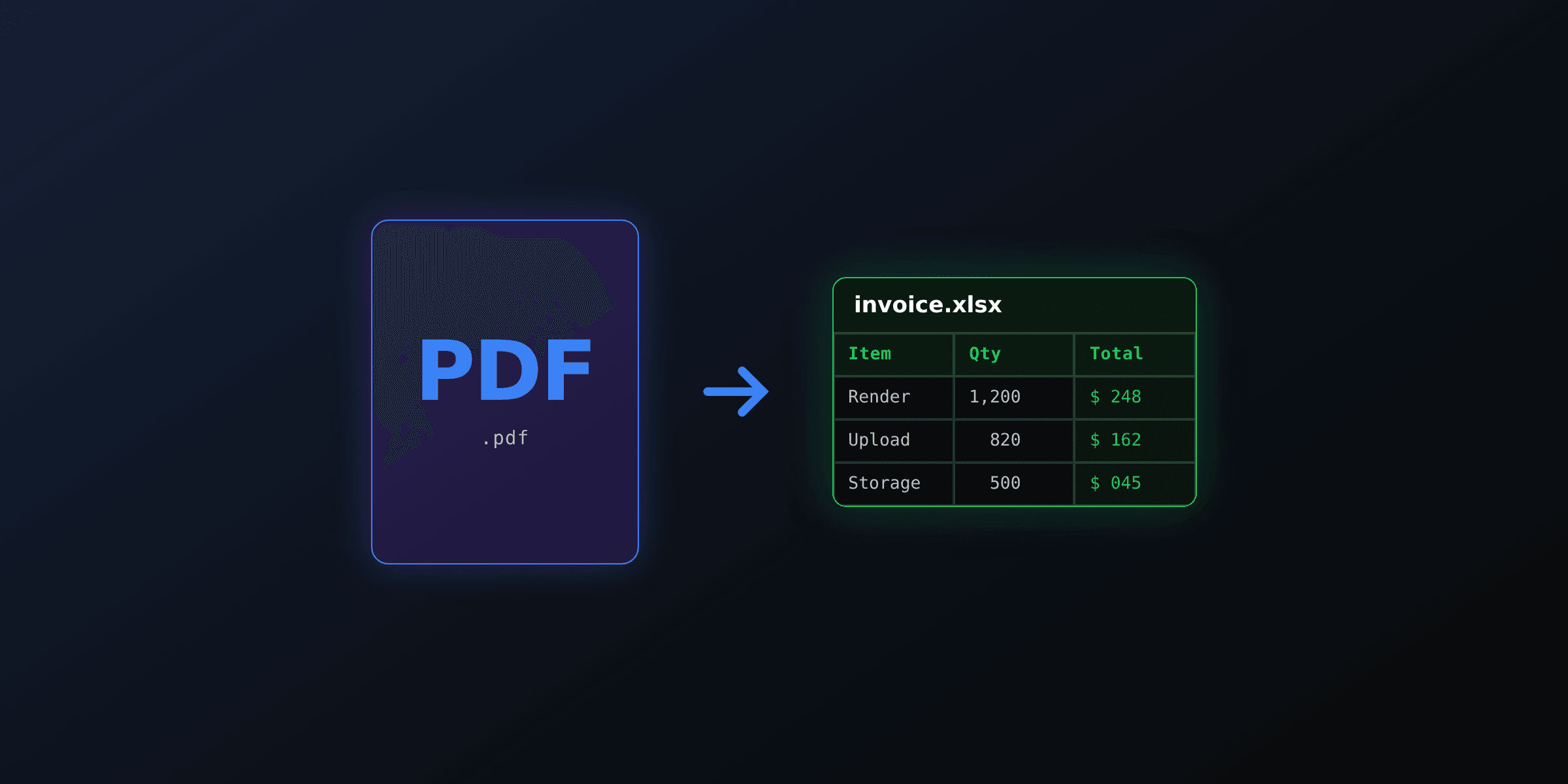
Converting a PDF to CSV means pulling the rows and columns of a table out of a PDF and writing them as comma-separated text, one line per row. The catch: a PDF does not store a table as a table. It stores glyphs at fixed x and y positions on a page, so every converter has to guess where the cells are. This guide covers the free browser method, three Python libraries, a Node.js approach, and what changes when the PDF is scanned.
If you only need a quick one-off and the PDF has a clean table, the fastest path is the free PDF to text tool: it runs in your browser, extracts the text layer, and you paste the result into a spreadsheet. For accuracy and automation, use Python.
Which PDF to CSV method should you use?
Pick your method based on the PDF type and whether you need to automate. Digital PDFs with ruled tables are the easy case and any tool handles them. Scanned PDFs need OCR first. Automation and large volumes favor Python.
| Method | Best for | Accuracy on tables | Cost |
|---|---|---|---|
| Free browser tool | One-off, digital PDF, privacy | Medium (text layer only) | Free |
| Camelot (Python) | Ruled tables, automation | High | Free |
| pdfplumber (Python) | Whitespace tables, custom logic | High | Free |
| Tabula (tabula-py) | Mixed tables, one-liner | Medium to high | Free |
| pdfjs-dist (Node.js) | JavaScript stacks | Medium (manual rows) | Free |
| OCR service | Scanned PDFs | High on scans | Paid per page |
Accuracy varies with table quality. Ruled tables with one value per cell extract cleanly; merged cells, multi-line cells, and multi-column layouts reduce accuracy for every tool.
How to convert a PDF to CSV online for free
Use a browser-based extractor when you have a single digital PDF and do not want to install anything. The pdf4.dev PDF to text tool reads the text layer with pdfjs-dist, entirely on your device, so the file never uploads to a server. That privacy property matters for invoices, payslips, and bank statements.
The trade-off: a text extractor returns the text in reading order, not a structured grid. For a simple table where each row sits on its own line, you paste the output into a spreadsheet and use "Text to columns" to split on the delimiter. For dense or multi-column tables, the column boundaries do not survive, and you should switch to Python.
If your goal is a real spreadsheet with data types rather than plain CSV, read how to convert PDF to Excel alongside this guide, since the extraction step is identical and only the write step changes.
How to convert a PDF to CSV with Python
Python has the strongest open-source table extractors. Camelot targets tables with ruling lines, pdfplumber gives you cell-level control, and Tabula wraps a Java engine with a one-line helper. All three write CSV without a paid API.
Camelot exposes read_pdf and a to_csv method per table, and its flavor argument picks the detection strategy. Use lattice for tables with visible lines and stream for whitespace-aligned columns.
import camelot

# lattice = tables with ruling lines, stream = whitespace-aligned
tables = camelot.read_pdf("report.pdf", pages="all", flavor="lattice")

for i, table in enumerate(tables):
    table.to_csv(f"table_{i}.csv")

print(f"Extracted {tables.n} tables")
Camelot and pdfplumber are both actively maintained and installable from PyPI. Camelot needs Ghostscript for its lattice mode; pdfplumber has no external dependency. For messy input, run both and keep the cleaner result.
How to convert a PDF to CSV in Node.js
Node.js has no table extractor as strong as Camelot, so you reconstruct rows yourself from positioned text. Read the text items with pdfjs-dist, group them by their y-coordinate into rows, sort each row by x, then join with commas. This is the same engine that powers the browser tool.
import * as pdfjsLib from "pdfjs-dist/legacy/build/pdf.mjs";
import { writeFileSync } from "node:fs";

const doc = await pdfjsLib.getDocument("report.pdf").promise;
const rows = [];

for (let p = 1; p <= doc.numPages; p++) {
  const page = await doc.getPage(p);
  const content = await page.getTextContent();

  // Group text items into rows by rounded y position
  const lines = new Map();
  for (const item of content.items) {
    const y = Math.round(item.transform[5]);
    if (!lines.has(y)) lines.set(y, []);
    lines.get(y).push({ x: item.transform[4], text: item.str });
  }

  // Sort rows top-to-bottom, cells left-to-right
  for (const y of [...lines.keys()].sort((a, b) => b - a)) {
    const cells = lines.get(y).sort((a, b) => a.x - b.x).map((c) => c.text);
    rows.push(cells);
  }
}

const csv = rows
  .map((r) => r.map((c) => `"${c.replace(/"/g, '""')}"`).join(","))
  .join("\n");
writeFileSync("output.csv", csv);
This handles the common case of one value per visual line. It does not infer merged cells or column spans, so wide or irregular tables still need manual tuning. The replace(/"/g, '""') step follows RFC 4180 quoting so values containing commas or quotes stay intact.
Why do PDF to CSV conversions break, and how do you fix them?
Conversions break because the extractor guesses cell boundaries and the guess fails on non-grid layouts. The four most common failures and their fixes:
Merged cells collapse into one column. Fix: switch from stream to lattice mode so ruling lines define the exact cell edges. Multi-line cells split into extra rows. Fix: post-process by merging rows that share a key column, or set a higher row tolerance in pdfplumber. Numbers import as text (currency, thousands separators, parenthesized negatives). Fix: clean the strings before writing, for example turning (1,200) into -1200. Wrong delimiter for your locale. Fix: set the delimiter explicitly, since RFC 4180 uses a comma but many European tools expect a semicolon.
For a deeper look at the extraction step shared with spreadsheet output, see how to extract text from a PDF and the complete guide to PDF conversion.
How do you convert a scanned PDF to CSV?
A scanned PDF is a picture of a page with no text layer, so extractors return empty rows. Confirm by trying to select text: if nothing highlights, it is scanned. You must run OCR to add a text layer before any table extraction works.
Tesseract is the free, open-source OCR engine and covers many languages. Its table structure detection is basic, so for dense scanned tables a paid service like Amazon Textract or Microsoft Document Intelligence returns cleaner cells, typically billed per page. After OCR produces a searchable PDF, feed it to Camelot or pdfplumber exactly as you would a digital PDF.
The best PDF to CSV conversion is the one you never run
Every method above is a reconstruction: the data started as structured rows, got flattened into positioned glyphs in a PDF, and now you spend effort guessing the grid back. If you own the document pipeline, keep the structured data as the source and generate the PDF from it, rather than parsing PDFs back into data later.
That is what PDF4.dev does. You send JSON to the render API, a Handlebars template lays it out, and you get a PDF. The CSV or database row that produced the document stays the canonical copy, so there is no round-trip to reverse.
Generating documents from structured data instead of parsing them back? Create a free PDF4.dev account and render your first PDF from JSON in a few lines.
curl -X POST https://pdf4.dev/api/v1/render \
  -H "Authorization: Bearer p4_live_xxx" \
  -H "Content-Type: application/json" \
  -d '{"template_id": "invoice", "data": {"total": "1200.00"}}'
This does not replace PDF to CSV when you receive PDFs from third parties, and bank statements or supplier invoices still need extraction. But for documents you produce yourself, generating from data beats parsing it back every time.
Summary
For a digital PDF and a one-off, use the free PDF to text tool and split into columns. For accuracy and automation, use Camelot in lattice mode, or pdfplumber for irregular tables. In Node.js, reconstruct rows from pdfjs-dist text positions. For scanned PDFs, run OCR first. And when you control the source data, generate the PDF from it so you never have to convert back.
Free tools mentioned:
Frequently asked questions
- Can I convert PDF to CSV for free?
- Yes. For digital PDFs with clear tables, free Python libraries like Camelot, Tabula, and pdfplumber write tables to CSV in a few lines of code with no account. For a one-off, a free browser tool extracts the text layer, which you paste into a spreadsheet and split into columns. Both paths are free; the Python route is more accurate on real tables.
- What is the difference between PDF to CSV and PDF to Excel?
- CSV is a plain-text format where each line is a row and commas separate columns, defined by RFC 4180. Excel (XLSX) is a binary spreadsheet with formatting, formulas, and data types. Extracting the table is the same work in both cases; only the final write step differs. Choose CSV for pipelines, databases, and scripts; choose XLSX when a person will open the file in Excel.
- Why does my PDF to CSV conversion break the columns?
- PDFs do not store tables as tables. They store positioned glyphs on a page, and the extractor guesses cell boundaries from ruling lines or whitespace alignment. Merged cells, multi-line cells, and decorative borders confuse the guess. Switching between lattice mode (ruled tables) and stream mode (whitespace tables) fixes most column-break problems.
- How do I convert a scanned PDF to CSV?
- A scanned PDF is an image, so the text layer is empty and standard extractors return nothing. Run OCR first to add a text layer, then extract the table. Tesseract is the free open-source option; paid services like Amazon Textract and Microsoft Document Intelligence have higher table accuracy on scanned pages.
- What is the best PDF to CSV library for Python?
- Camelot is the strongest for tables with visible ruling lines and exposes a direct to_csv method. pdfplumber gives finer control over cell logic and works well for whitespace-aligned tables. Tabula (tabula-py) wraps a Java engine and has a one-line convert_into helper. Start with Camelot in lattice mode; fall back to pdfplumber for irregular layouts.
- Is there a Node.js library to convert PDF to CSV?
- Native Node.js table extraction is weaker than Python. The practical paths are pdfjs-dist to read positioned text items and reconstruct rows by y-coordinate, or calling tabula-java from Node via child_process. For production table workloads, a small Python service is usually less code than writing the reconstruction logic in JavaScript.
- How do I convert a PDF bank statement to CSV?
- Bank statements are usually digital PDFs with a consistent layout, the easiest case. Use Camelot stream mode when there are no ruling lines, lattice mode when there are. A common pitfall is amounts in parentheses for negatives, which import as text; convert them in a short post-processing step before writing the CSV.
- Can I batch-convert a folder of PDFs to CSV?
- Yes. A short Python script loops over the folder, extracts each PDF, and writes one CSV per file or one combined CSV with a source column. On modest hardware, a few hundred single-page digital PDFs convert in under a minute.
- Does the free browser tool upload my PDF to a server?
- The pdf4.dev PDF to text tool runs entirely in your browser using pdfjs-dist, so the file never leaves your device. That matters for bank statements, invoices, and any document with personal data. Server-side converters, by contrast, upload the file before processing it.
- Which delimiter should a CSV use?
- RFC 4180 defines the comma as the standard delimiter, but many European locales use a semicolon because the comma is the decimal separator. Match the delimiter your target system expects. Python csv and pandas let you set the delimiter explicitly with the sep or delimiter argument.
Start generating PDFs
Build PDF templates with a visual editor. Render them via API from any language in ~300ms.