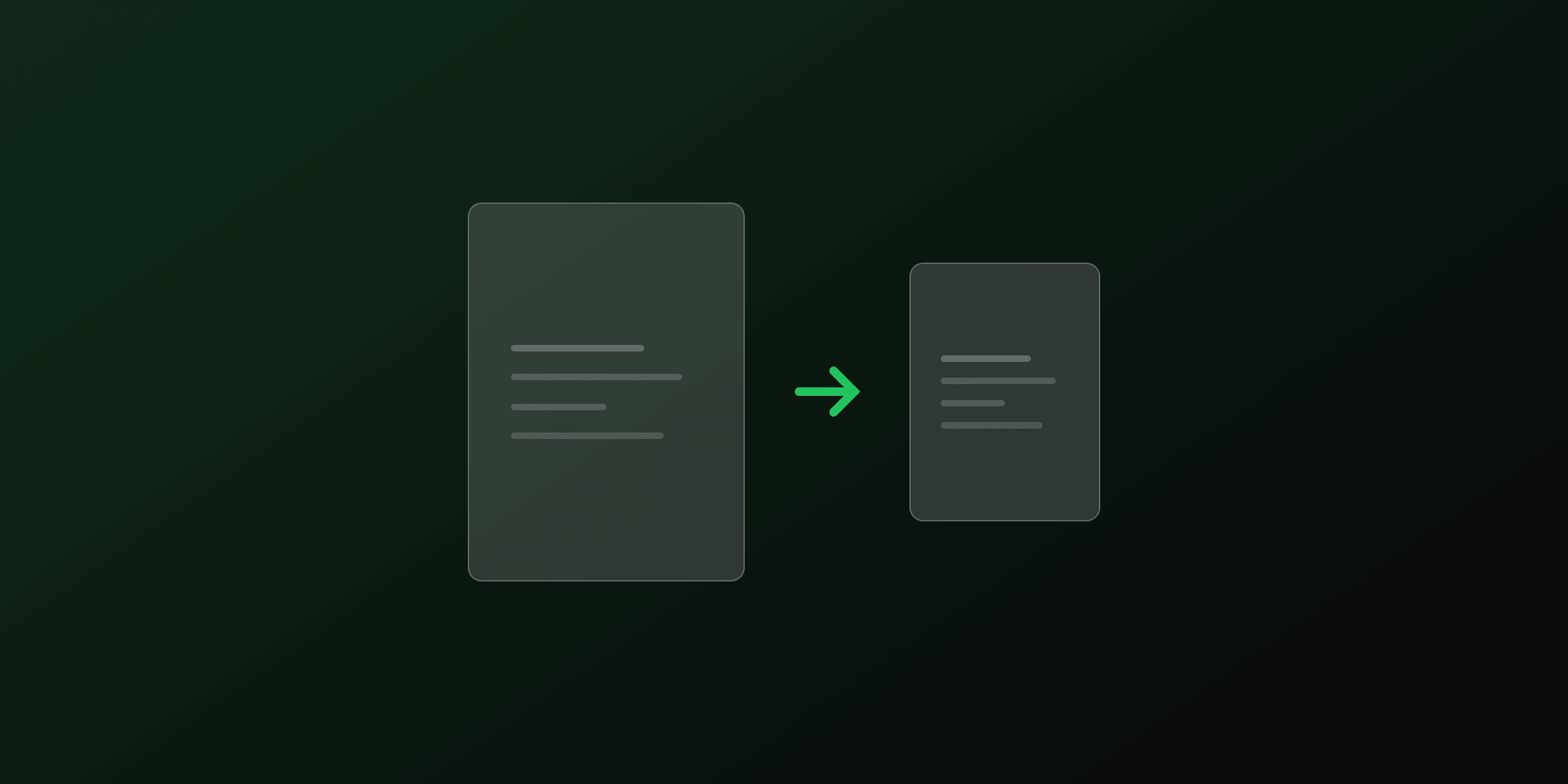
Cropping a PDF means reducing the visible area of each page, typically to remove unwanted margins, cut out a region of interest, or trim a scanned document to its content boundary. This guide covers the free online method and four programmatic approaches: pdf-lib (Node.js), PyMuPDF (Python), Ghostscript, and qpdf.
How PDF cropping works: CropBox vs MediaBox
A PDF page has several bounding boxes. The two you need to know when cropping are:
| Box | Purpose | Default |
|---|---|---|
| MediaBox | Full physical page size (always present) | Set at creation |
| CropBox | Region shown by viewers and printers | Falls back to MediaBox |
Most cropping tools adjust only the CropBox. The content outside the CropBox stays in the file but is not displayed. This means a simple crop is reversible: reset the CropBox to the MediaBox and the full content reappears. To permanently discard the hidden area (and shrink the file), you must re-render the page through a PDF printer like Ghostscript.
How to crop a PDF online (free, no upload)
The PDF4.dev crop PDF tool runs entirely in your browser using pdf-lib. Files are never sent to a server.
- Open pdf4.dev/tools/crop-pdf and drop your PDF onto the upload area.
- A thumbnail of the first page appears. Enter margin values (in mm) for top, bottom, left, and right.
- Choose whether to apply the crop to all pages or a custom page range.
- Click Crop PDF and download the result.
The tool applies the crop by adjusting the CropBox on each selected page. For per-page cropping with different values, process the file in multiple passes.
Crop a PDF online, freeTry it freeHow to crop a PDF with pdf-lib (Node.js)
pdf-lib is a pure-JavaScript library that runs in Node.js and the browser. It adjusts the CropBox directly.
npm install pdf-libimport { PDFDocument } from "pdf-lib";
import { readFileSync, writeFileSync } from "fs";
async function cropPdf(
inputPath: string,
outputPath: string,
margins: { top: number; bottom: number; left: number; right: number }
) {
const bytes = readFileSync(inputPath);
const doc = await PDFDocument.load(bytes);
for (const page of doc.getPages()) {
const { width, height } = page.getSize();
// PDF coordinates: origin is bottom-left
const x = margins.left;
const y = margins.bottom;
const w = width - margins.left - margins.right;
const h = height - margins.top - margins.bottom;
page.setCropBox(x, y, w, h);
}
const output = await doc.save();
writeFileSync(outputPath, output);
console.log(`Cropped PDF saved to ${outputPath}`);
}
// Crop 10pt from each side (1 point ≈ 0.353 mm)
cropPdf("input.pdf", "output.pdf", {
top: 10,
bottom: 10,
left: 10,
right: 10,
});Convert mm to points
PDF dimensions use points (1 inch = 72 points). To convert millimetres:
const mmToPoints = (mm: number) => (mm / 25.4) * 72;

// Crop 5mm from each side
const margin = mmToPoints(5); // ≈ 14.17pt
page.setCropBox(margin, margin, width - margin * 2, height - margin * 2);
Crop to a specific page only
const pages = doc.getPages();
const pageIndex = 0; // first page
const page = pages[pageIndex];
const { width, height } = page.getSize();
page.setCropBox(20, 20, width - 40, height - 40);
How to crop a PDF with PyMuPDF (Python)
PyMuPDF (pymupdf) provides page.set_cropbox() which accepts a Rect in points.
pip install pymupdfimport pymupdf # pip install pymupdf
def crop_pdf(input_path: str, output_path: str, margin_pt: float = 14.17):
"""Crop all pages by removing a uniform margin (in points)."""
doc = pymupdf.open(input_path)
for page in doc:
rect = page.rect # MediaBox as a Rect
cropped = pymupdf.Rect(
rect.x0 + margin_pt,
rect.y0 + margin_pt,
rect.x1 - margin_pt,
rect.y1 - margin_pt,
)
page.set_cropbox(cropped)
doc.save(output_path, garbage=4, deflate=True)
print(f"Saved: {output_path}")
# Crop 5mm (≈ 14.17pt) from all sides
crop_pdf("input.pdf", "output.pdf", margin_pt=14.17)Crop to content bounding box (auto-trim whitespace)
PyMuPDF can detect where the actual content sits and crop to that boundary automatically:
import pymupdf

doc = pymupdf.open("input.pdf")

for page in doc:
    # get_text("blocks") returns (x0, y0, x1, y1, text, block_no, block_type) tuples
    blocks = page.get_text("blocks")
    if not blocks:
        continue
    # Compute bounding box of all text blocks
    xs = [b[0] for b in blocks] + [b[2] for b in blocks]
    ys = [b[1] for b in blocks] + [b[3] for b in blocks]
    padding = 14  # add 5mm padding
    bbox = pymupdf.Rect(min(xs) - padding, min(ys) - padding,
                        max(xs) + padding, max(ys) + padding)
    page.set_cropbox(bbox)

doc.save("output.pdf", garbage=4, deflate=True)
Auto-trim works well for text-heavy documents. For scanned PDFs or image-only pages, use the image bounding box from
page.get_image_info()instead.
How to crop a PDF with Ghostscript (command line)
Ghostscript re-renders the visible area into a new page, permanently removing content outside the crop region and reducing file size.
# Install on macOS
brew install ghostscript

# Install on Ubuntu/Debian
sudo apt install ghostscript
Set a new page size and translate the coordinate system
gs \
  -sDEVICE=pdfwrite \
  -dNOPAUSE \
  -dBATCH \
  -dFIXEDMEDIA \
  -dPDFFitPage \
  -g5954x8419 \
  -c "-14 -14 translate" \
  -f input.pdf \
  -sOutputFile=output.pdf
What each flag does:
| Flag | Effect |
|---|---|
-dFIXEDMEDIA | Lock the output page size instead of inheriting from input |
-dPDFFitPage | Scale content to fit the new page size |
-g<width>x<height> | Output dimensions in pixels at 72dpi (so 1 unit = 1pt): 5954x8419 ≈ A4 minus 5mm on each side |
-c "<x> <y> translate" | Shift coordinate origin to skip the left/bottom margin |
Calculate the output dimensions
For an A4 page (595 x 842 pt) cropped 5mm (≈ 14pt) on each side:
- Width: 595 - 14 - 14 = 567 pt →
-g5670x8140 - Height: 842 - 14 - 14 = 814 pt
- Translate:
-c "-14 -14 translate"(shift origin past the left/bottom margin)
gs -sDEVICE=pdfwrite -dNOPAUSE -dBATCH \
   -dFIXEDMEDIA -dPDFFitPage \
   -g5670x8140 \
   -c "-14 -14 translate" \
   -f input.pdf \
   -sOutputFile=output_cropped.pdf
Ghostscript processes all pages with the same settings. For per-page crops, split the PDF first, crop each page, then merge with
pdfuniteor the merge PDF tool.
How to crop a PDF with qpdf (command line)
qpdf 11+ supports --crop which adjusts the CropBox without re-rendering, so it is fast and lossless.
# Install on macOS
brew install qpdf

# Install on Ubuntu/Debian
sudo apt install qpdf
# Syntax: --crop=left,top,right,bottom (in points from the page edges)
qpdf --crop=14,14,14,14 input.pdf output.pdfThis removes 14 points (≈ 5mm) from each side by setting the CropBox. The original content is preserved in the MediaBox. To apply to specific pages only:
# Crop pages 1-3 only
qpdf --crop=14,14,14,14:1-3 input.pdf output.pdf
Comparison: which method to use?
| Method | Removes hidden content | Speed | Per-page control | Use case |
|---|---|---|---|---|
| PDF4.dev tool | No | Instant | All or range | Quick one-off, no code |
| pdf-lib | No | Fast | Full (loop) | Node.js automation, client-side |
| PyMuPDF | No | Fast | Full (loop) | Python scripts, data pipelines |
| Ghostscript | Yes | Slower | One crop for all | Print-ready, file size reduction |
| qpdf | No | Fastest | Page ranges | Batch scripts, lossless crop |
Results marked "No" for hidden content removal mean the content outside the CropBox stays embedded in the file. Use Ghostscript or the compress PDF tool after cropping to strip it out.
Common use cases
Remove scanned borders. Flatbed scanners often capture a grey border outside the document area. Set a uniform margin of 8-15pt to trim it cleanly.
Crop a two-column PDF to one column. Set the right margin to 50% of the page width to show only the left column, then repeat with the left margin at 50% to extract the right column. Merge both outputs for a single-column reading layout.
Trim slide decks. PowerPoint-exported PDFs often include thick white borders. Crop 20-30pt from each side to make the content fill more screen space.
Prepare files for print. Professional printers request documents with 3mm bleed (content extending past the trim line). Use the crop tool to verify the visible area matches the intended trim size before sending to press.
Extract a region of a page. Combine cropping with page extraction: extract the target page with the extract pages tool, then crop it to the exact bounding box of the element you want.
Summary
- Cropping a PDF adjusts the CropBox, not the MediaBox. Hidden content stays in the file unless you re-render with Ghostscript.
- For quick crops with no code, use the PDF4.dev crop PDF tool: browser-only, instant, free.
- For Node.js automation,
pdf-libwithsetCropBoxis the simplest path. - For Python,
PyMuPDFwithset_cropboxhandles single pages and whole documents equally well. - For permanent content removal and file size reduction, Ghostscript re-renders the visible area into a clean new page.
- For fast lossless batch scripts,
qpdf --cropis the most straightforward command-line option.
Frequently asked questions
- Does cropping a PDF permanently delete content outside the crop area?
- Not necessarily. PDF cropping works by adjusting the CropBox, which tells PDF readers which region of the page to display. The content outside the CropBox may still be physically present in the file data (in the MediaBox). To permanently discard hidden content and reduce file size, you must re-render the page, for example by printing to PDF via Ghostscript with -dPDFSETTINGS=/prepress, which bakes the visible region into a new page.
- What is the difference between CropBox and MediaBox in a PDF?
- The MediaBox defines the full physical size of the page: every pixel of content lives within it. The CropBox defines the visible region that PDF viewers and printers use by default. If no CropBox is set, viewers fall back to the MediaBox. Cropping tools usually adjust only the CropBox, leaving the MediaBox unchanged.
- How do I remove white margins from a PDF?
- Upload your PDF to the PDF4.dev crop tool at /tools/crop-pdf, then set top, bottom, left, and right margins to trim the white borders. The tool shows a live preview so you can dial in the exact values before downloading. For programmatic trimming, pdf-lib (Node.js) and PyMuPDF (Python) let you set the CropBox to the content bounding box.
- Can I crop each page of a PDF to a different size?
- Yes, but most tools apply one crop setting to all pages. To crop pages individually, process each page separately: extract it, crop it, then merge the results. With pdf-lib you iterate pages in a loop and call setCropBox with different values per page. With PyMuPDF you call page.set_cropbox(rect) inside a loop with per-page rect values.
- Does cropping a PDF reduce file size?
- Cropping alone (adjusting the CropBox) does not reduce file size because the hidden content is still embedded. To reduce size after cropping, run the file through the PDF4.dev compress tool or Ghostscript, which re-renders only the visible area into a new file.
- How do I crop a PDF without Adobe Acrobat?
- Use the free PDF4.dev crop PDF tool at /tools/crop-pdf: it runs entirely in your browser, files never leave your device. For automation, use pdf-lib in Node.js (setCropBox), PyMuPDF in Python (set_cropbox), or Ghostscript on the command line (set PageSize and translate the coordinate system).
- How do I crop a PDF on the command line?
- Ghostscript can crop by setting a new PageSize and translating the coordinate system: gs -sDEVICE=pdfwrite -dNOPAUSE -dBATCH -dFIXEDMEDIA -dPDFFitPage -g<width>x<height> -c "<x> <y> translate" -f input.pdf -sOutputFile=output.pdf. For a simpler CropBox-only adjustment, use qpdf: qpdf --crop=left,top,right,bottom input.pdf output.pdf (qpdf 11+).
Start generating PDFs
Build PDF templates with a visual editor. Render them via API from any language in ~300ms.